A Gentle Introduction to Docker

As a front-end developer, I don't find myself having to interact with Docker too much other than to spin up the things I need for local development. It wasn't until a very annoying environment issue involving Docker occurred that I realized that I should, at the very least, have a high-level understanding of this tool.
I am by no means an expert, but these are the notes I took based on the fantastic Academind: Docker Complete Tutorial. I hope these notes prove helpful for those looking for a gentle introduction to Docker like I was.
What is Docker?
Docker is a tool for creating and managing containers. Containers are a "standardized unit of software" and contain the packages of code and the necessary dependencies required to run that code. One advantage of this is that the same container will always yield the exact same application and execution behavior.
Containers work as standalone entities and multiple containers can be paired up to achieve different tasks. These containers can be used anywhere Docker runs.
Benefits of Containers
- Prevents the issue of conflicting tools/versions of libraries and/or services across different projects. Some projects may require a different toolset than other projects.
- Allows for the same development and production setups to ensure that things work and operate the same across both environments. This helps to mitigate discrepancies between the two environments.
- Creates cohesion across a team/company when working on the same project. Containers help prevent the "it works on my machine so I'm not sure why it's not working on yours" dilemma. Overall it makes it easier to share a common development environment/setup across a development team.
 xkcd - Laptop Issues
Containers vs. Virtual Machines
Docker is a simpler and more lightweight alternative to having to spin up multiple virtual machines (VM's). With Docker containers, you can create a configuration file, called a Dockerfile, that you can share with others so they can recreate the container on their machine. Another alternative is building the container in an image and sharing that image with others.
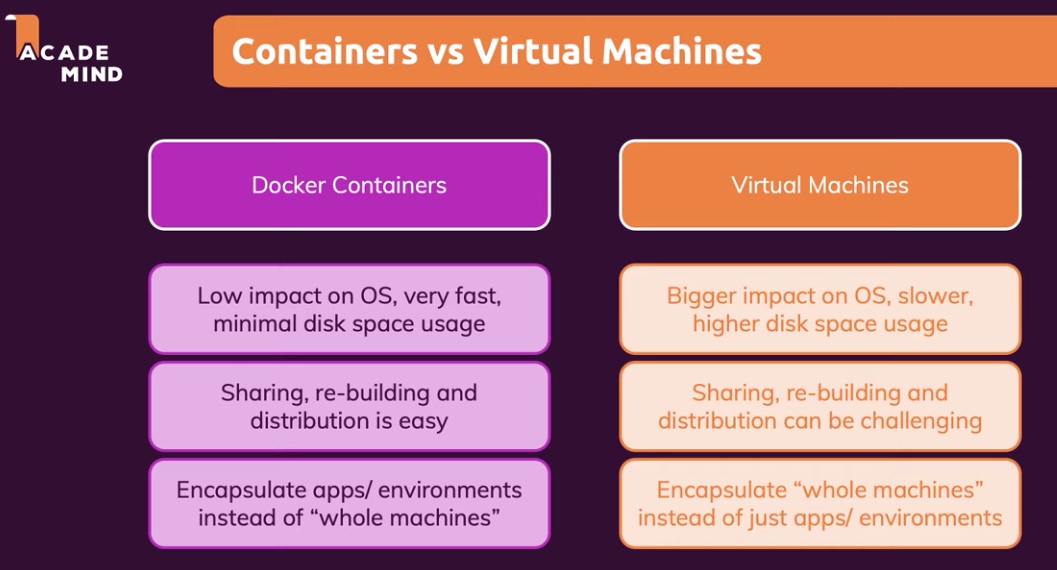 Academind - Containers vs. Virtual Machines slide
The importance of Images & Containers
Images and Containers are the core building blocks when working with Docker.
Images are the templates/blueprints for containers. The image contains the code and required tools needed. The container then goes and runs this image to execute the code.
The image is a "shareable package" or snapshot containing all the setup instructions and the code for the application. The container is a concrete, running instance of the image. Containers are run based on images. This whole concept of images and containers are the crux of Docker.
The reason for this separation of concerns is intentional. Because of this infrastructure, an image can be created with all of the necessary setup instructions and code once and then be used to create multiple containers based on that image.
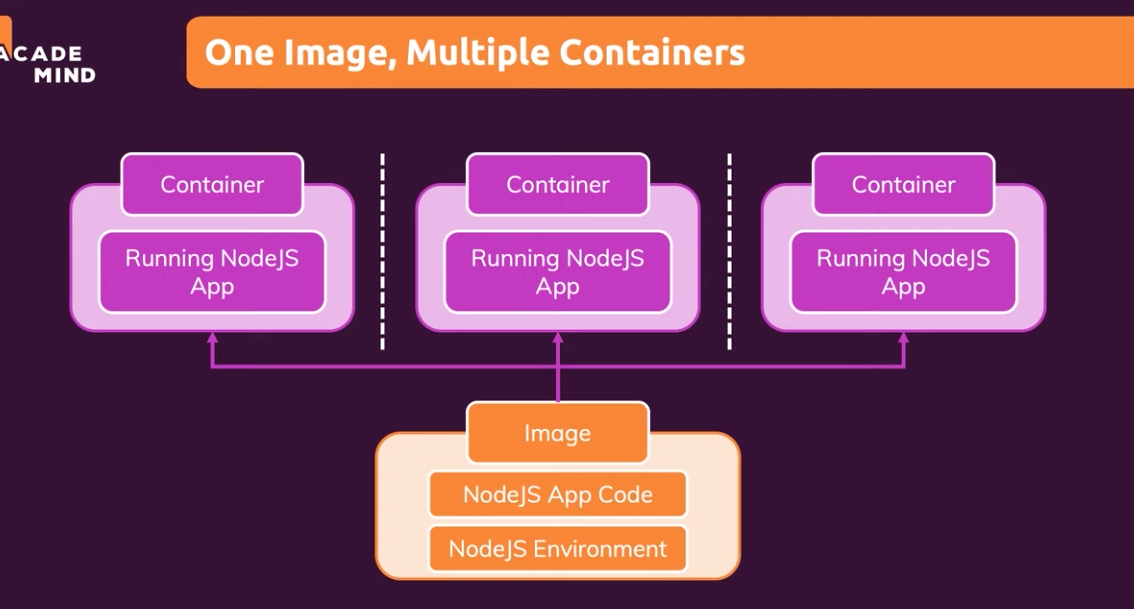 Academind - One Image, Multiple Containers slide
Finding/Creating Images
To find images, you can either:
- Use one of the many available images from Docker Hub.
- Use an existing, pre-built image.
- Create your own, custom image (write your own
Dockerfilebased on another image).
Constructing Dockerfiles
A Dockerfile is simply a text document that contains a list of instructions for Docker when building custom images. There are myriads of commands one can use within a Dockerfile. I won't go into detail here, but you can check out the official docs to see a full list of Dockerfile instructions.
Below is a sample Dockerfile used throughout the video tutorial with comments describing what each command does.
# Use node version 14 as a base image.
# Makes node available in the container.
FROM node:14

# Have the /app directory inside the filesystem.
# Every container has its own filesystem.
WORKDIR /app

# Copy package.json file into the working /app directory
COPY package.json .

# Run npm install to install all the app dependencies
RUN npm install

# Copy rest of the code into the directory a level down
COPY . .

# Expose port 3000.
# This makes the port available both inside and outside the container
# Can access the app on localhost:3000
EXPOSE 3000

# Execute app.js with the node command.
CMD [ "node", "app.js" ]
Common Docker CLI commands
On any Docker command, you can add --help to see all the options.
docker ps⇒ Displays a list of all running containers.psstands for "processes".docker ps -a⇒ Display a list of all the containers (both running and stopped containers)docker run node⇒ Runs a command in an image. If necessary, it pulls down the latest node image from the Docker Hub.
Building an image and running/stopping a container
docker build <path-to-Dockerfile>⇒ creates a new custom image based on the instructions in the Dockerfile.docker run -p <local-port>:<docker-port> <imageId>⇒ tells Docker which local port to run the container under. ("Port Forwarding")docker stop <container>⇒ stops the specified container from running.
Managing Images and Containers
docker run <container>⇒ creates a brand new container and runs it in the foreground ("attached mode").docker start <container>⇒ restarts a previously stopped container. This does not create a new image and the container runs in the background ("detached mode").docker logs <container>⇒ fetches the logs (if any) that are outputted by the container.
El Fin 👋🏽
I hope this tutorial provided a clear overview for those looking to gain a basic understanding of Docker.
If you enjoy what you read, feel free to like this article or subscribe to my newsletter, where I write about programming and productivity tips.
As always, thank you for reading and happy coding!
Resources
Photo by Ian Taylor on Unsplash
About the author
Welcome to my blog 👋🏽
I'm a Front-End Developer with a passion for learning!
I write about Programming 👩🏽💻 and Productivity Tips ✅
Comments
Join the discussionThanks this is a great article. Also, that linked Youtube tutorial was quite useful, just finished watching it.
One thing that confused me about containers that I don't think was adequately addressed was whether you can run a Linux container on Windows and vice-versa.
The answer is not technically. Containers share the hosts kernel thus Linux containers will not run on Windows and vice-versa. However, Docker desktop for Windows actually runs a Linux VM behind the scenes which allows you to run both Windows and Linux containers.
This StackExchange question, this StackOverflow question, and this article explain it a bit better.
That’s a very interesting question 🧐 I appreciate you sharing your findings on the topic. I learned something new today!
A great introduction for those new to Docker! Great job and thanks for sharing!
Thanks Braydon! 😃


