
Caching in the Browser
By default, browsers will cache static assets (i.e. CSS, JS, images) to speed up load times and improve a website's performance. When caching occurs, the browser will keep track of the file that was loaded and, if it has a copy of it within its cache reserve, it will serve the cached file back instead of trying to re-download a newer version of the file from the server.
Overall, browser caching is a positive thing. I mean who doesn't want faster load times? One negative is, if a change is made to one of the files that the browser already has in its cache, it will continue to load the older, cached version of the file. In this case, the new changes will not be reflected until the user clears their cache. Cache-busting helps solve this problem.
Fingerprinting vs. Cache-Busting
Fingerprinting involves appending a unique hash to the filename and is a technique used to achieve cache-busting. Cache-busting is when browsers are "tricked" into serving up newer versions of a file. One method of cache-busting is to "fingerprint" a filename. Because the name of the file has changed, the browser recognizes that there is a new version available, and as a result, the cache gets "busted" and serves up the updated version of the file.
Fingerprinting and cache-busting are related to one another but are not interchangeable terms.
webpack Configuration
webpack provides a convenient way to fingerprint files in your application. I'll demonstrate how to do this with a basic example.
Let's assume we have a webpack.config.js file that contains the following code:
const path = require("path");
module.exports = {
  entry: "./js/scripts.js",
  output: {
    filename: "[name].js",
    path: path.resolve(__dirname, "build")
  }
}
With this configuration, webpack will bundle up the code in scripts.js and place that into a file named main.js inside the /build directory 📁.

In order to alter this so that we are instead fingerprinting the file, we need to include the contenthash substitution. Now our code will look like this:
const path = require("path");
module.exports = {
  entry: "./js/scripts.js",
  output: {
    filename: "[name].[contenthash].js", //contenthash substitution
    path: path.resolve(__dirname, "build")
  }
}
By adding the contenthash substitution, the next time we run webpack the name of the bundled file will now look like this:

Cleaning up 🧹
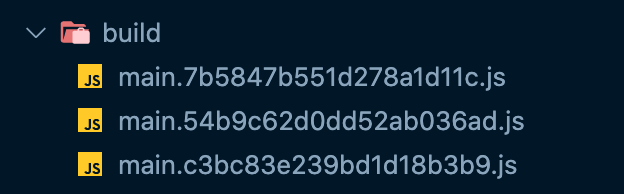
Each time there is a change and a build is run, by default webpack will generate a new file in the directory. However, this is not ideal since we don't want the directory getting cluttered with obsolete files and we only want to point to the newest version. Conveniently, webpack provides the CleanWebpackPlugin to handle this very scenario.
- First, you need to install this plugin and add it to your dev dependencies:
npm install --save-dev clean-webpack-plugin
- Once installed, we can now add the plugin to the
webpack.config.jsfile.
const path = require("path");
const { CleanWebpackPlugin } = require('clean-webpack-plugin');
module.exports = {
  entry: "./js/scripts.js",
  output: {
    filename: "[name].[contenthash].js",
    path: path.resolve(__dirname, "build")
  },
  plugins: [
    new CleanWebpackPlugin() //Add to plugins array
  ]
}
Now, when we run the build, you will see that the file will automatically get replaced with the newest version any time a change has occurred.
El Fin 👋🏽
With tools like Create React App doing a lot of the heavy lifting when it comes to bundling, I haven't had to dabble too much with weback configurations. So I was pleasantly surprised when I discovered that fingerprinting files in webpack is actually quite simple. (For further learning, check out Skay's - A Basic Introduction to Webpack for a good overview on webpack)
If you enjoy what you read, feel free to like this article or subscribe to my newsletter, where I write about programming and productivity tips.
As always, thank you for reading and happy coding!
Resources
About the author
Welcome to my blog 👋🏽
I'm a Front-End Developer with a passion for learning!
I write about Programming 👩🏽💻 and Productivity Tips ✅
Comments
Join the discussionGreat Article Alyssa Holland... and thanks for the mention :-)
No problem! 😃 I really enjoy reading your in-depth articles. They are great resources!
Programming Bytes 😣
Programming Bytes is a series where I discuss challenging or new coding problems I faced at work, how I solved them, and the lessons I learned along the way.


