# Open a file/folder in VSCode from the Terminal
> A Note on the Series:
> Fast Fridays 🏎 is a series where you will find fast, short and sweet tips/hacks that you may or may not be aware of. I will try to provide these (fairly) regularly on Fridays.
Have you ever been traversing through the terminal and want to open up a particular file or folder in VSCode? The long way to do this is to open up the editor, find the folder where the file is located, and then open the file. Well, there's actually a quicker way to do this with just a few configuration steps.
### Configure via the Command Palette
1. Open up Visual Studio Code
2. Press CMD + Shift + P (Mac) or CTRL + Shift + P (Windows) to open up the command palette
- Alternatively, you can do **View --> Command Palette** from the toolbar.
3. Type **shell command** in the input and you should see the following options:

4 . Select "**Install 'code' command in PATH**"
5 . Restart your terminal
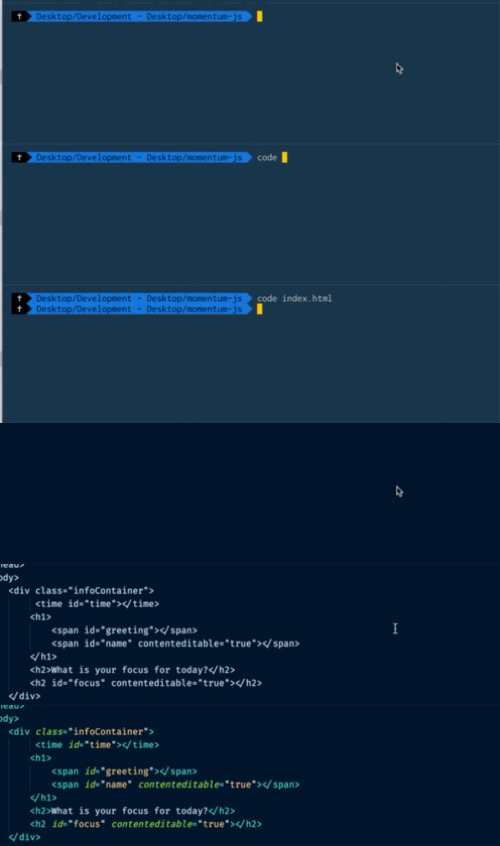
After these steps you should now be able to run the following commands in the terminal:
1. `code ` --> Opens VSCode with the specified file.
2. `code .` --> Opens VSCode with the current directory you are in.
### Resources
- https://code.visualstudio.com/docs/setup/mac